Yes! I want to bring the interactive and educational experience of Byron and Speak to Students to my school.
Book Byron Live: Interactive 4-Hour Speaking & Workshop Experience Special Offer
Limited Time Back to School Offer: 4-Hours of Speak to Students Live in School for only $500
You missed out!
Choose Your Presentation Topic(s)

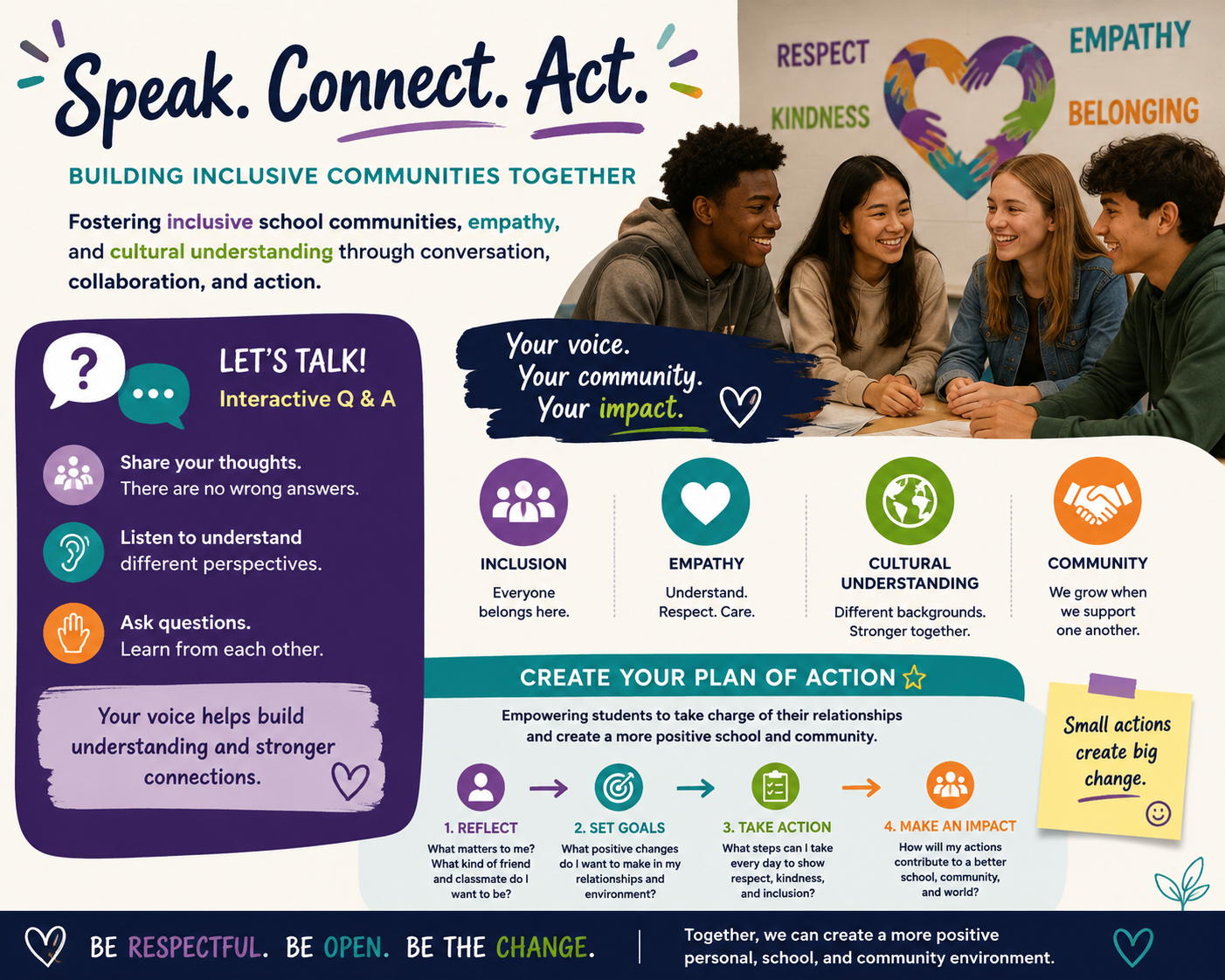
Culture & Diversity: Fostering inclusive school communities, empathy, and understanding with an interactive question and answer format to encourage participation and increase retention.
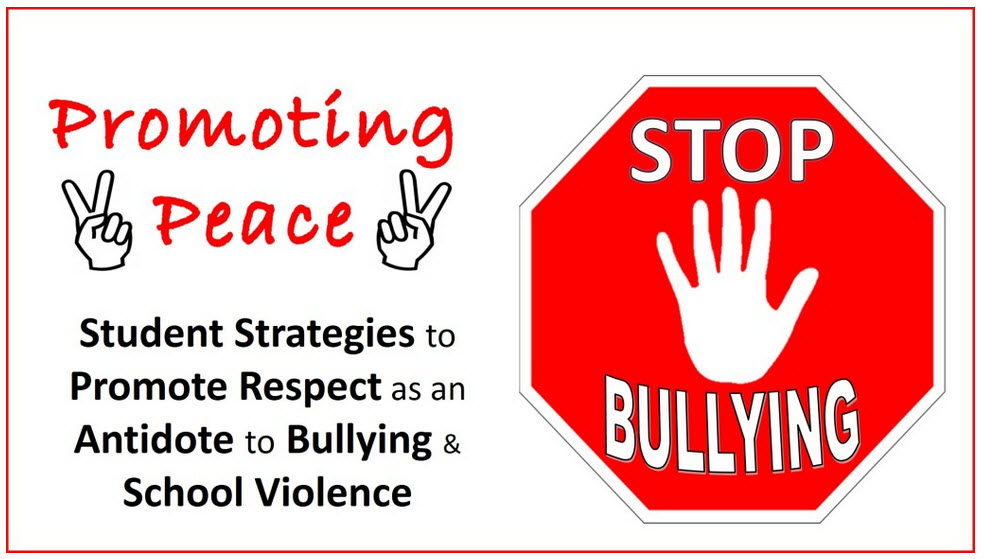
Respect & Integrity: Empowering students to create their personal plans of action for navigating peer relationships to create a more positive personal, school, and Community enviroment.
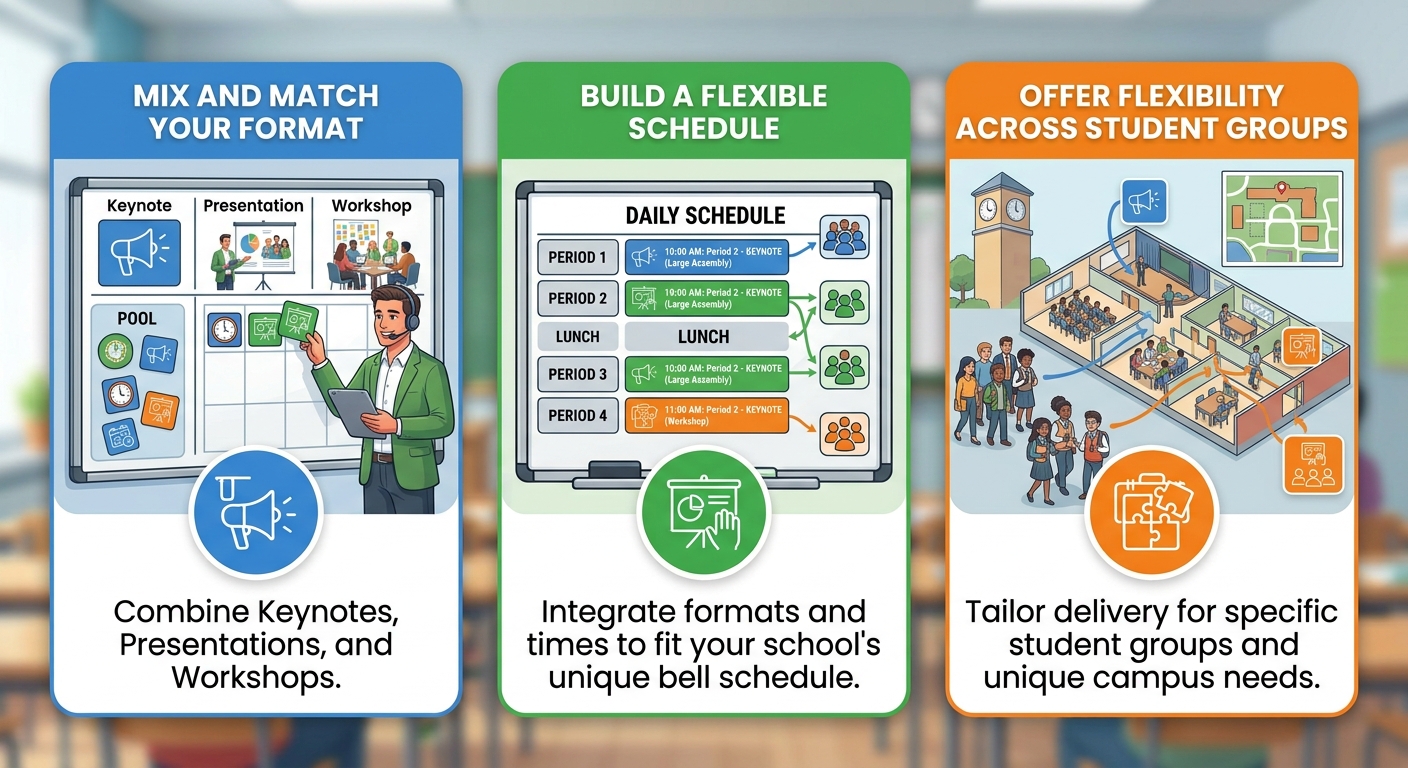
Combine elements or tailor a custom theme specific to your school’s current initiatives.
Select Delivery Format & Target Audience
Relevant for Multiple Student Audiences
Middle School
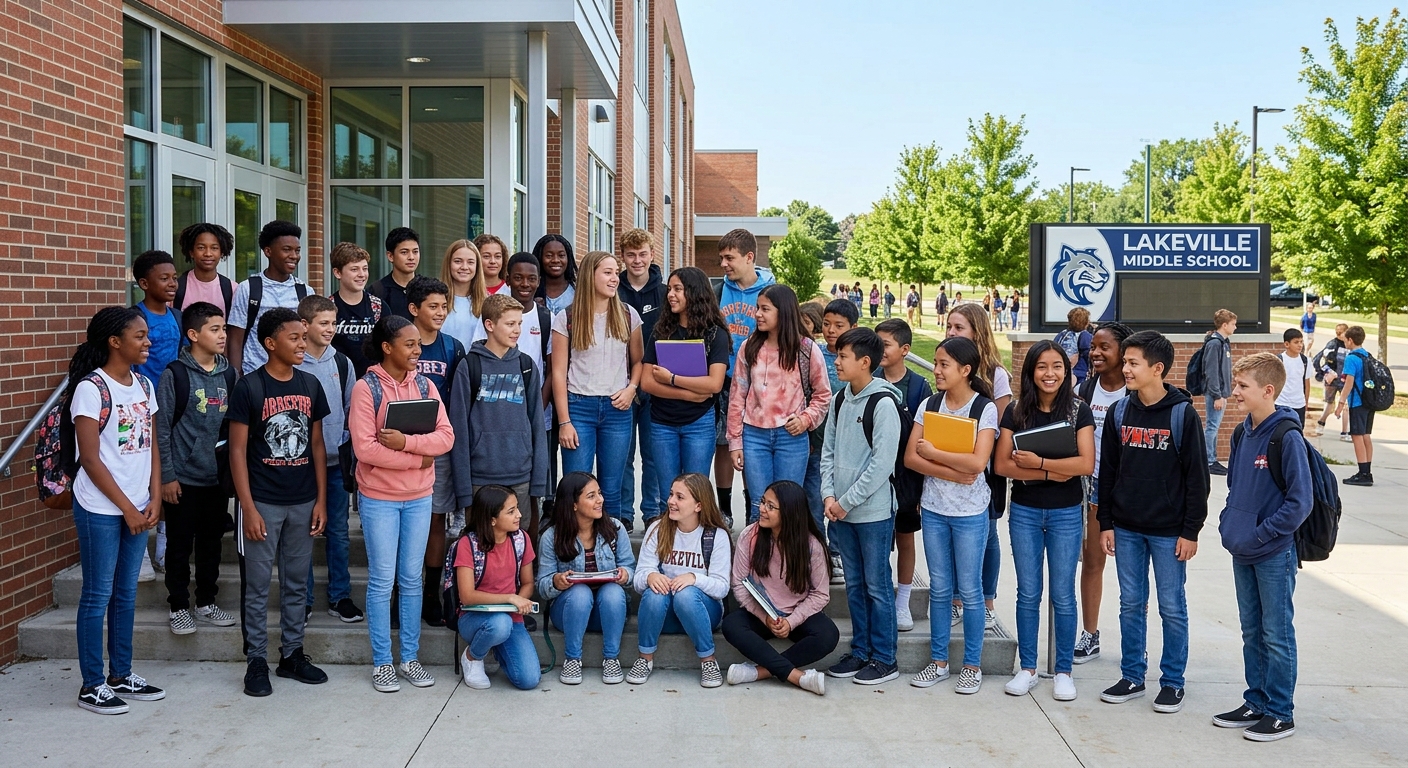
High School

Post Secondary

Educators & Parents

in Rural, Urban, and Suburban Schools

More Questions?
Still don't see it? Check your spam, updates, or promotions folder and add our email address to your safe senders list.
How to Whitelist speaktostudents.com
To make sure your video access email and login credentials arrive safely, add our email address to your contacts or safe senders list following the steps for your email provider below:
Gmail
- Open an email from Speak to Students
- Hover over the sender name (Speak to Students) at the top of the email.
- Click Add to Contacts (the small icon with a person and a plus sign).
- If it landed in Spam/Promotions: Drag the email into your Primary inbox tab and click "Yes" when asked to apply this to future messages.
Outlook / Hotmail
- Click the Settings gear icon in the top right corner.
- Go to View all Outlook settings > Mail > Junk email.
- Under Safe senders and domains, click + Add.
- Type in
the email addressand hit Save.
Apple Mail (iOS / Mac)
- Open any email from Speak to Students.
- Tap or click on the sender's name/email address at the top.
- Select Add to Contacts or Create New Contact.
Yahoo Mail
- Open Yahoo Mail and click on the Contacts icon in the right sidebar.
- Click Add a new contact.
- Enter Speak to Students and set the email ,
then click Save.
4 Different Levels of Culture Online


© 2026, Speak to Students